
Start GPS course search
NAVO W1 does not start looking for a course automatically. From the clock screen, press the top-right crown-style button once to begin.

- Press the top-right crown-style button once.
- Or swipe right to left to open the main menu, then tap the center Play Golf button with the flag icon.
- Confirm that the watch displays GPS Searching. If this screen does not appear, course search has not started.
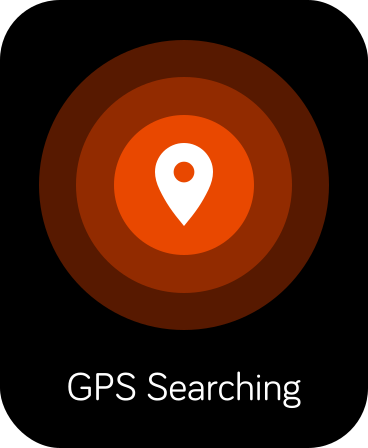
Cancel GPS course search
While GPS Searching is displayed, press the crown button again or swipe from left to right. Either action cancels the search and returns to the clock face.
Wait for GPS, then select your course
During the round
From firmware 1.6.6 onward, NAVO automatically advances only to the next sequential hole (current hole + 1) when you reach that next hole’s tee box. This reduces incorrect hole changes when driving past other holes’ tee boxes.
If you skip a hole or play out of order, swipe up or down on the golf screen until the desired hole appears. For example, if the watch shows hole 3 and you skip hole 4 to play hole 5, select hole 5 manually.
GPS is still searching or no course appears
If no nearby course appears, first confirm that you pressed the crown and saw GPS Searching. Then make sure you are outdoors in an open area. GPS course search works best outdoors, not inside a building.
If GPS Searching lasts more than five minutes, follow the update-and-reset steps in the GPS troubleshooting FAQ. If GPS finds courses but yours is missing, see course update help.
Finish your round
Press the crown button, then select Exit Game to return to the clock.