
When NAVO W1 is not in golf mode, you can still access core tools quickly, including quick settings, history, and round start controls.
Learning these actions first makes on-course navigation faster when you move into golf play mode.
The clock face is the home screen outside golf mode. From another non-golf screen, swipe left to right or press the lower button to go back. During a round, press the crown to open the playing menu and select Exit Game to return to the clock face.
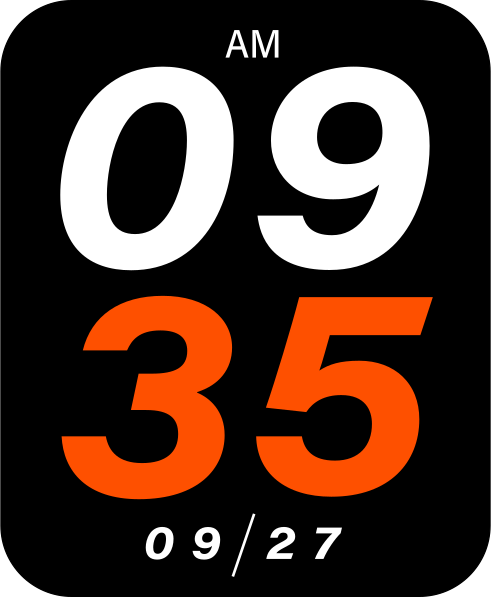
Information on the watch face
The watch face shows the time and date. Some faces also show the number of steps you have taken that day. The shoe icon marks this daily step count.
Change the watch face:
- From the clock screen, swipe right to left to open the main menu.
- Tap the gear icon to open Settings.
- Select Watch Face.
- Swipe through the available watch faces.
- Tap the watch face you like to select it.
Show your daily steps
To see your step total for the day, use the Watch Face settings above and choose a face that shows the step count with a shoe icon. This is your daily step total, separate from the steps recorded during a single golf round.
To check a round's walking statistics, swipe right to left from the clock screen, tap History (the first/top tile), and select the round. Scroll down past the score, putts, FIR, and GIR to see the round's duration, steps, and miles walked. See the round summary guide.
Buttons:
- Crown button (while the clock screen is awake): Play golf (starts looking for a nearby golf course)
- Lower button: Turn off screen / Go back
- Crown button (long press): Turn off the watch, then confirm when prompted
For the full round-start sequence, see Starting a round.
Quick features:

- Swipe left to right opens quick features:
- Battery indicator: shows the remaining battery charge
- Bluetooth: turn Bluetooth on or off
- Vibration: turn vibration on or off
- Sun: increase screen brightness by tapping it (maximum Level 5)
- Slope: turn Slope Mode on or off
- Parameters / Settings: open the watch settings
Make the screen brighter:
- From the clock screen, swipe left to right to open Quick Settings.
- Tap the sun icon to increase the brightness.
- For the brightest screen, select Brightness Level 5.
You can also use Settings > Display Settings > Brightness. During a round, press the crown button to open the playing menu, then follow this Settings route.
Main menu:

- Swipe right to left opens main menu:
- History / score cards
- Play golf
- Parameters